Short answer: connecting Odoo to ZATCA Phase Two takes roughly a working day if your business data is clean. Almost all of that day goes into preparation and testing. The technical connection itself is a handful of clicks. This guide covers the full sequence, including the one step you cannot undo.
Before you start: the preparation that decides everything
Most failed integrations fail here, not at the technical step. Get these right first and the rest is straightforward.
| What you need | Where it has to be exact |
|---|---|
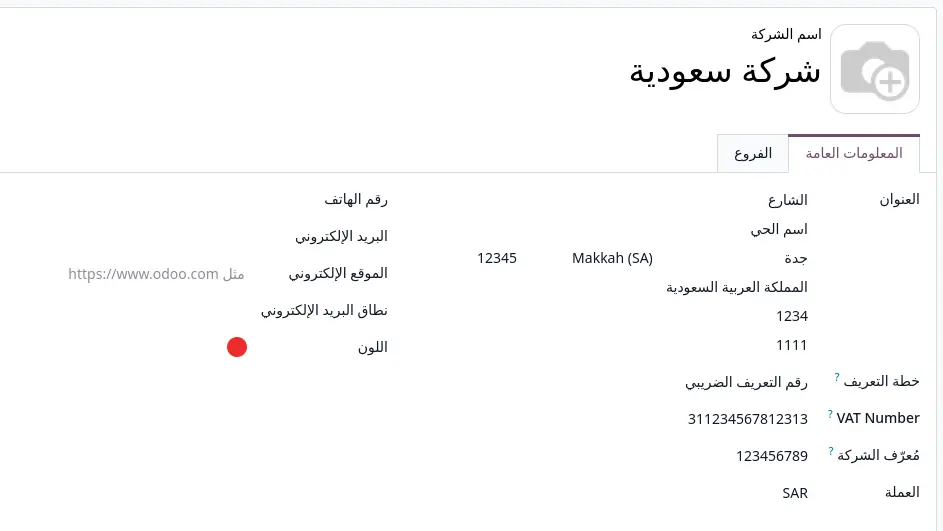
| VAT registration number | 15 digits, starting and ending with 3, identical to your ZATCA registration |
| Commercial registration number | On the company record in Odoo |
| National address | Building number, additional number, postal code, district, street, city, all of them |
| Fatoora portal access | Credentials for the account that will generate the OTP codes |
| Journal decision | Which sales journals will issue e-invoices, and whether branches need separate ones |
Spend an hour verifying this against the ZATCA portal rather than assuming. A single mismatched character between the two systems will block onboarding, and the error message will not tell you which field is wrong.
Step 1: Company data
Open the company record and complete every field above. Two things people commonly miss:
- The country must be Saudi Arabia on the company address, not left blank or inherited.
- The company name used in the certificate has a 64-character ceiling. If your full Arabic legal name with the entity type spelled out exceeds it, onboarding will fail. Use a shortened form. It does not have to match your letterhead.
Step 2: Localization and the e-invoicing module
The Saudi localization has to be installed on the company, and the e-invoicing extension enabled on top of it. Installing the localization alone gives you the chart of accounts and the 15 percent VAT setup, but not the ZATCA connection. Both are needed.
If you are on a hosted Odoo instance, confirm the module is actually installed rather than assuming it ships by default, because it does not on every setup.
Step 3: Configure the journal
E-invoicing is configured per sales journal, not per company. Open the journal you will invoice from and you will find a ZATCA section on it.
Decide up front how many journals you need. A single-location business needs one. A business with branches that must be reported separately needs a journal per branch, and each will have its own certificate. Adding branches later is possible but means repeating the whole onboarding for each.
Step 4: Onboarding in simulation mode
This is the technical connection, and it runs in a test environment first. Never start in production.
- Generate the certificate request from Odoo. Odoo builds it from the company data you entered in Step 1. If it fails here, the cause is field length or missing data, so go back rather than retrying.
- Get an OTP from the Fatoora portal. The code is short-lived and single use, and each journal needs its own. Have Odoo open and ready before you request it.
- Enter the OTP in Odoo and complete the request. Odoo exchanges it for a certificate and stores it against the journal.
If onboarding fails partway, do not simply repeat the same steps. A half-configured journal can end up in an inconsistent state that makes retries behave unpredictably. Verify the journal state first.
Step 5: Customer and tax setup
Two configuration points that decide whether your invoices route correctly:
Company Type on every customer
This single field determines the entire submission route. A customer marked Individual produces a simplified invoice sent for reporting. A customer marked Company produces a standard tax invoice sent for clearance. There is no separate setting on the invoice itself.
Audit your existing customer list before going live. Records imported from an older system almost always have this wrong, and every one of them will fail.
Taxes
The standard 15 percent VAT comes with the localization. If you use retention tax, it must be configured with a negative amount. Set positive, it produces validation failures that look unrelated to tax configuration and are very hard to trace.
Step 6: Test every document type
This is the step people rush, and it is the reason production goes wrong. In simulation mode, successfully submit all four:
- A standard tax invoice to a customer marked as a Company
- A simplified invoice to a customer marked as an Individual
- A credit note referencing an original invoice
- A debit note referencing an original invoice
If you sell exempt services in health or education, test those too, because the exemption codes require the buyer National ID, not just a VAT number, and you want to discover that now rather than in production.
Step 7: Switch to production
This step cannot be reversed. Once a journal moves from simulation to production there is no way back to testing on that journal. Before you click it, confirm all four document types passed in Step 6.
After switching, issue one real invoice and follow it end to end before resuming normal invoicing. Confirm it appears correctly on the ZATCA portal, not just that Odoo reports success.
The first two weeks
Watch these daily until you are confident:
- Any invoice not in an accepted state. Resolve it the same day, because invoices are chained in order and one stuck document freezes every invoice created after it on that journal.
- Rejections clustering at a particular time of day. Usually a timezone problem: Odoo stores UTC while ZATCA validates against Riyadh time, and evening postings can read as future-dated.
- A single customer failing repeatedly. Check their Company Type before anything else.
Also set a calendar reminder well ahead of your certificate expiry date. Renewal must happen before it lapses. There is no grace period, and an expired certificate stops invoicing completely.
Point of sale
If you run POS, configure it before opening a session. Incomplete ZATCA settings can block sessions from opening entirely, and validation errors surface to the cashier mid-sale rather than in the back office. Brief your staff on what the dialog means, or your first busy day will produce support calls describing a broken till.
Frequently asked questions
Can I test in production first and switch back?
No. The move to production is one-way. Complete all testing in simulation.
Do branches need separate certificates?
Each invoicing unit needs its own registration and certificate. How many units you need depends on how your journals and points of sale are structured.
What if an invoice is wrong after it was submitted?
It cannot be reset to draft. That restriction is deliberate and matches the requirement that submitted documents are immutable. Issue a credit note referencing the original.
How long does the whole thing take?
With clean data, about a working day including testing. Most projects that run longer are fixing business data, not fighting the integration.
If something goes wrong
Errors during setup or submission are common and almost all of them are known. See our guide to Odoo ZATCA errors and their fixes for the full diagnostic walkthrough.
Back to the complete ZATCA requirements guide
This content is for general information and does not replace the official specifications published by the Zakat, Tax and Customs Authority. Screens and behaviour may differ across Odoo versions.